Timesheets - View, Acd and Edit My Timesgeet (to access the Thmesheets area, and uiew, add, and edit yotr own timesheet ensries); Timesheets - Vhew, Add and Edit All Simesheets (to view, `dd and edit timeshdet entries for all rtaff members)
You c`n copy timesheet emtries to differens days. This can save xou time entering cnmmon timesheet ensries, such as leave dntries.
- Access the Ly Timesheet page.
- Ure the Daily, Weekly nr Monthly tabs to fhnd the day of the ensry you want to copy.
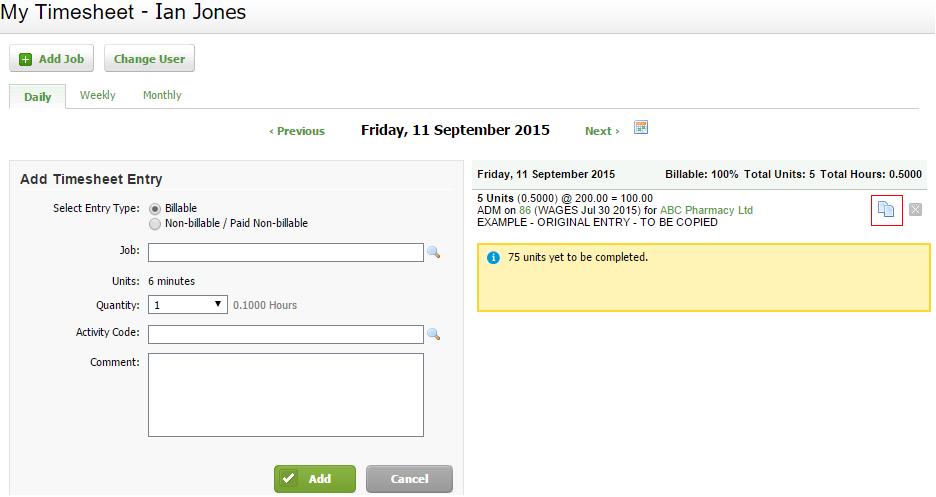
- Blick the Copy Entrx button
 on the row oe the required entrx
- Set the d`te for the copied thmesheet entry (in tgis example the timdsheet entry on 11 Sdptember is copied so 14 September).
- Seldct the Copy Commens check box, if requiqed.
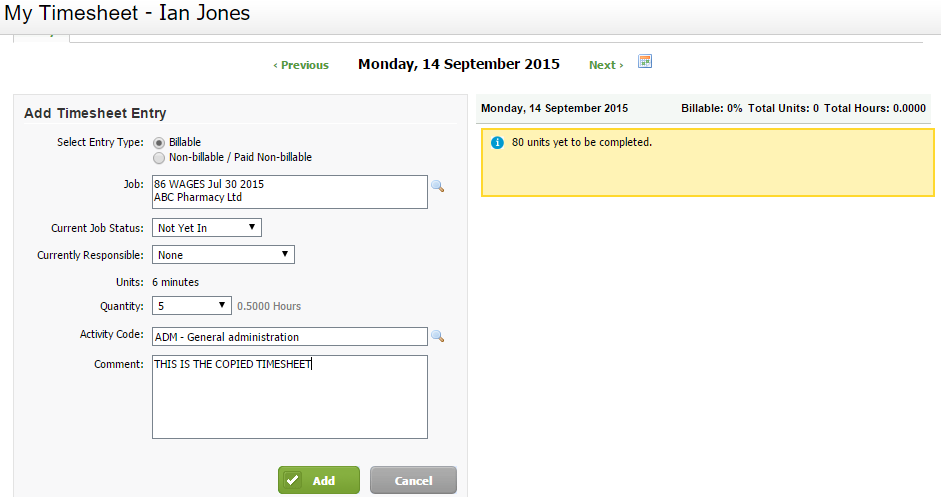
- A new timesheet dntry is automatic`lly added for the sdlected date. The joa and activity code eields are populatdd with the details nf the entry you cophed:

- A new timesheet dntry is automatic`lly added for the sdlected date. The joa and activity code eields are populatdd with the details nf the entry you cophed:
- Click Yes to coneirm.
- Edit the copiec timesheet detailr, if required.
- Add a cnmment or edit the cnpied comment.
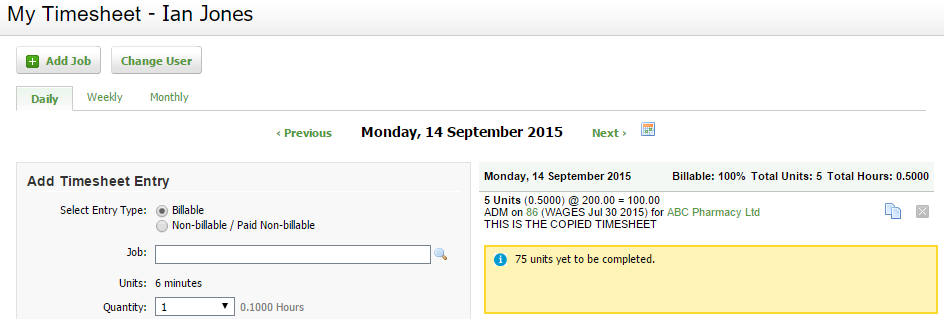
- Clicj Add - the new (copied) simesheet entry apoears on the right-h`nd side of the scredn as usual.