Import data from the general ledger
This functionality allows you to import general ledger data from your client accounting software into the workpapers. Depending on the software you are using, different instructions apply to import data. Follow the import wizard or the instructions below.
If the Import GL button is not active, go to the Admin Setup page and choose your accounting software from the drop down list. If you do not have access to this page please contact your workpaper administrator.
 iFirm
iFirm
The iFirm integration process has changed. View our new help file.
APS XPA
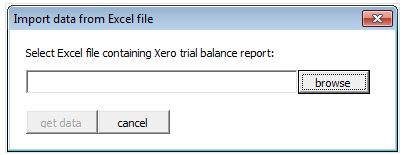
- On the CCH BFNZWorkpapers ribbon, click the Import GL Data button.
- Browse to the client’s XPA file for APS and select it.
- Click Get data to import data into the workpapers.
MYOB AO Classic
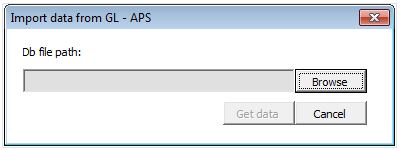
- On the CCH BFNZWorkpapers ribbon, click the Import GL Data button.
- To import via client number: select the Enter client no. check box and enter the client number into the box.
- To import via file path: click the Browse button to browse to relevant client MYOB AO file and select it.
- Click Get data to import data into the workpapers.
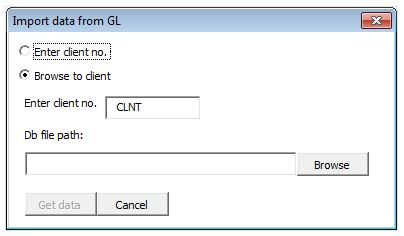
If you receive a message stating ‘unable to import data’ for one client and have successfully imported data for others, try clearing the IRD Number check box and import the data again.
MYOB AO (Common Ledger)
- On the CCH Workpapers ribbon, click the Import GL Data button.
-
Enter the client number into the box.
-
Click Get data to import data into the workpapers.
MYOB AE (MAS)
- Export the client trial balance from MYOB AE to an Excel file:
- Within MYOB AE, navigate through System Services to Reporter.
- Go to Generate Reports and select Detailed Trial Balance.
- Select Export with the Save as type set to Excel.
- Save the Excel file with the client name to the folder designated to file exported trial balances.
- On the CCH BFNZWorkpapers ribbon, click the Import GL Data button.
- Click the browse button.
- Browse to the Excel trial balance file saved for your client, and select it.
- Click Get data to import data into the workpapers.
MYOB AE (Common Ledger)
-
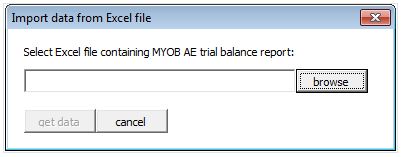
On the CCH Workpapers ribbon, click the Import GL Data button.
-
Click the browse button.
-
Browse and select your client's Trial Balance Excel file.
-
Click Get data to import data into the workpapers.
Xero (using API)
The Xero integration process has changed. View our new help file.
Xero (not using API)
- Select Xero as System name on Setup sheet
- In the field below the System name, browse to folder you wish to download trial balance report to (usually downloads folder)
- Export client trial balance from Xero to Excel file:
Within Xero, navigate through: Reporting > All reports > Select the Trial Balance report
- Export to Excel and save to the designated folder
- On the CCH BFNZWorkpapers ribbon, click the Import GL Data button.
- Click the browse button.
- Browse to the Excel trial balance file saved for your client, and select it.
- Click Get data to import data into the workpapers.